
Smartphone storage fills up faster than most people expect. One day, everything runs smoothly, and the next day, you see “Storage Almost Full” warnings and slow performance. The main reason is simple: modern phones handle huge photos, 4K videos, heavy apps, and a constant stream of downloads and messages. Each tap, save, and share leaves data behind. Many users never see the hidden files that quietly expand in the background. This guide explains what actually takes up the most space on your smartphone and shows practical ways to clean, organize, and prevent future storage problems.
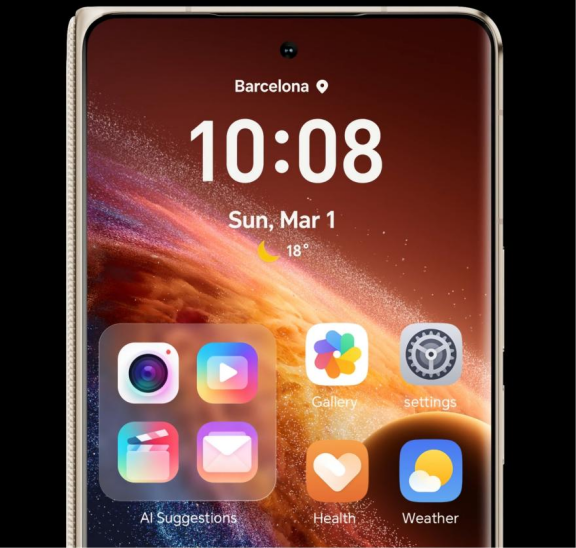
Photos and videos usually take the top spot on your storage chart. Modern cameras shoot high-resolution images and 4K or even 8K videos that eat gigabytes quickly. Burst photos, Live Photos, slow-motion clips, and HDR shots create multiple files per tap. People rarely delete bad shots or duplicates, so libraries grow unchecked. Social apps also save media you view or share. Over time, that endless stream of memories becomes the single largest storage consumer on most smartphones.
Apps and games start small but grow as you use them. Every update adds new features and larger files. Games store graphics, offline levels, and saved data. Social, music, and video apps keep cached images, playlists, and streams. Navigation apps save maps for offline use. Chat apps store messages, photos, and videos inside their own folders. You might install apps once and forget them, but they continue to collect data in the background, slowly swallowing more of your phone’s available storage.
Behind the scenes, your phone saves cache files to speed things up. Browsers store website data, videos, and images. Streaming apps keep partial downloads. Social media apps keep thumbnails and media previews. Download folders hold PDFs, documents, and installers you only need once. Temporary update files sometimes remain after system changes. None of these files looks important, but together they can use several gigabytes. Because they stay hidden in system or app folders, you often do not notice them until storage warnings appear.
Text messages feel light, but attachments turn them into storage hogs. Group chats share photos, stickers, GIFs, and videos nonstop. Messaging apps like WhatsApp, Telegram, and iMessage often auto-download every file. Many users never clear old conversations, so years of chats remain on the device. Email apps save attachments and offline copies of messages. Music and video services store offline playlists and episodes. All this “just in case” content quietly grows, especially if you use multiple messaging and streaming apps daily.
Built-in storage tools show what uses the most space. Open device settings, go to storage, and review the color-coded bar, category breakdown, and app list by size. You can also use a trusted file manager to check large files and grouped categories. Sort apps by storage use and tap each one to view app size, data, and cache. These tools highlight big, old, or rarely used items so you can target them first.
Start with low-value items: duplicate photos, blurry shots, unused apps, and old downloads. Delete them directly from storage settings or file manager. For important photos and videos, back them up to cloud services such as Google Photos, iCloud, OneDrive, or Dropbox, then remove local copies. Move large documents or media to the cloud or an SD card if your phone supports one. For chat apps, clear older media or export key conversations before deleting. Always check twice before removing anything critical.
Treat storage maintenance like any other routine task. Once a month, open your storage settings and review the biggest apps and files. Delete screenshots you no longer need and old screen recordings. Clear downloads, cached files, and offline content you finished using. Set reminders to back up photos and videos regularly, then remove local copies. Review messaging apps and archive or delete large, old conversations. Small, frequent cleanups prevent large emergencies and keep your phone responsive, stable, and easier to manage.
You can prevent storage issues by changing a few settings. Disable auto-download of media in messaging apps. Lower video recording resolution if you do not need 4K quality. Turn on cloud backup and optimize storage options so HONOR Magic V6 keeps smaller local versions. Save big files directly to cloud folders rather than internal storage. When installing new apps or games, remove ones you no longer use. Simple choices like these stop data from piling up and extend your phone’s usable life.

Smartphone storage fills up because of visible files like photos, videos, and apps, and hidden data such as cache, downloads, and old messages. When you understand what takes up the most space, you can act before your phone slows down or blocks new content. Use built-in tools to track storage, delete low-value files, and move important items to the cloud. Build simple habits like monthly cleanups and smarter app settings. With these steps, your phone stays fast, organized, and ready to hold what truly matters.